Roll20 uses cookies to improve your experience on our site. Cookies enable you to enjoy certain features, social sharing functionality, and tailor message and display ads to your interests on our site and others. They also help us understand how our site is being used. By continuing to use our site, you consent to our use of cookies. Update your cookie preferences .
×
May your rolls be chill this holiday season!
Create a free account

Map jpeg uploads grey/low contrast??

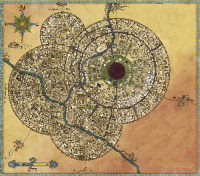
Hi, I feel like this has probably been brought up before but I really can't find it with google: I'm uploading jpegs to the map layer, and they pop up grey/low contrast. Here's an example:  Image #1 is the map that I uploaded, viewed on my desktop, so you can see the difference.  image #2, on the left is my map image, it's all grey, as you can see. Right next to it is a map bought from the Marketplace, as you can see it's fine with full colour/contrast.  Things I've tried: - Turning off dynamic lighting. That wasn't the problem anyway, since the desert image from Marketplace looks fine - Checking that it's on the correct layer - Messing with image tint - Messing with GM Darkness Opacity, GM info overlay etc.  - Viewing as a player. Still looks the same Would it be to do with my jpeg properties? I think Illustrator exported a CMYK jpeg, though I'm not an expert on that kind of thing. Or would it be something else? No wrong answers! Thanks a bunch in advance!! -Josh
Here's a slightly clearer demonstration:
1689120358

Edited 1689120405
Make sure you are using RGB mode in your photo editing software. CMYK mode is for largescale printing businesses/specialized physical printing.
Well darn, that fixed it! (My illustrator settings were on CMYK from a PDF that WAS for an industrial printer hehe) I'll leave this post up as a warning I guess: Don't upload CMYK images to roll20!!
(I am, it turns out, a big idiot)
1689145854
keithcurtis
Forum Champion
Marketplace Creator
API Scripter
Wow, I would not have expected that to be the solution at all. Roll20 internally converts all uploaded images to png format (or used to--haven't tested in a while), which does not support the cmyk color space. Maybe that is where the tint was coming in. Must experiment.